Can you watch Premiere Pro on a phone?
Yes, and there are a few ways to try it. Most of them lag seconds behind, show your whole desktop, or need an app and a list of IP addresses. Here’s what each one is like, and how Tethery puts the Program Monitor on your iPhone, iPad or Android phone, live, in a couple of minutes.
Contents 8 sections
The short answer
Premiere Pro has no phone app of its own. What it does have is Mercury Transmit, the route it uses to send the Program Monitor to an external video monitor. Anything that wants Premiere Pro’s picture, a video card, a streaming output or a plug-in, sits on that route.
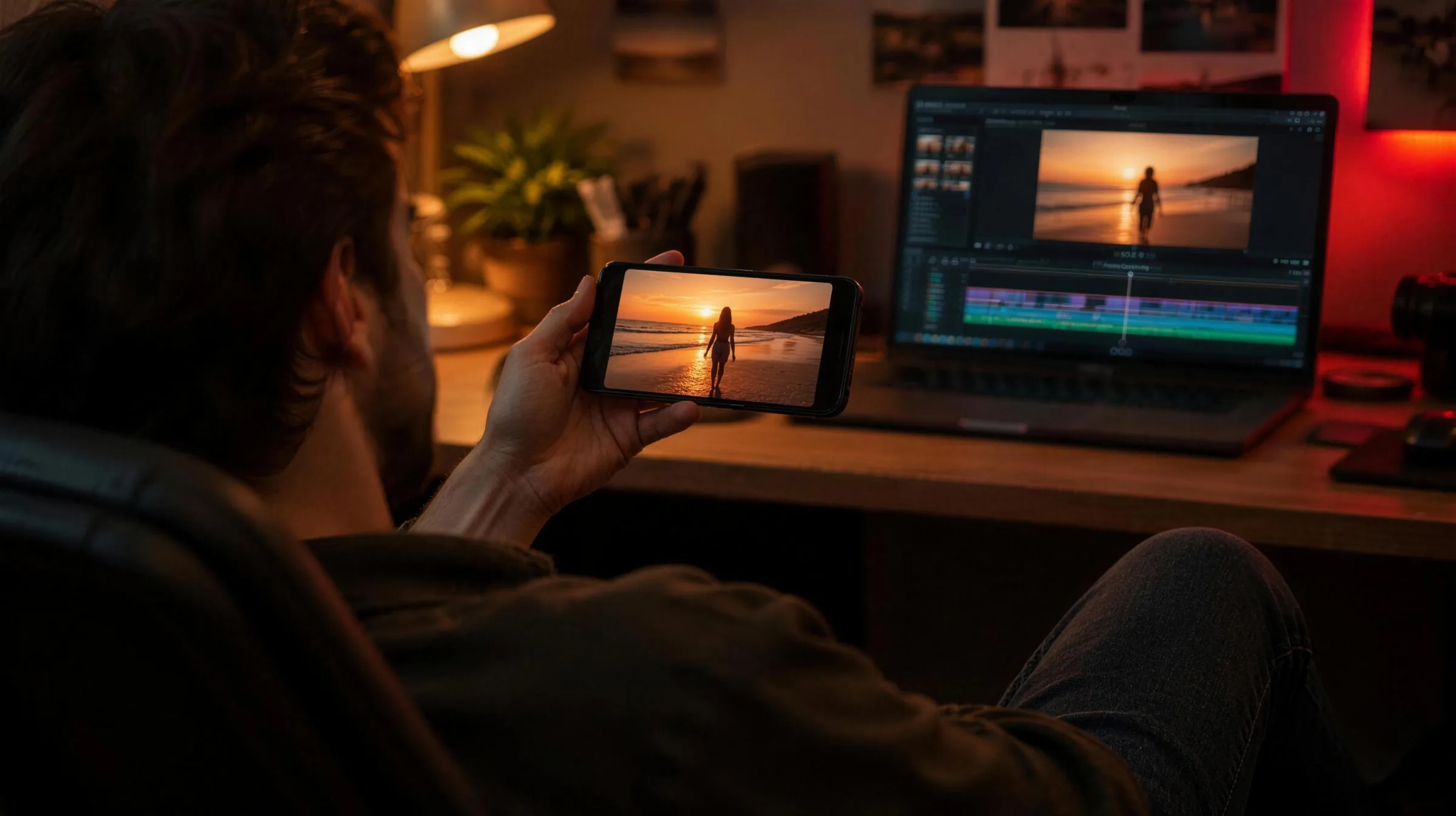
Tethery is a plug-in on it. It takes the picture Premiere Pro renders and streams it to your phone’s browser over your own network. Start a session in the Tethery panel, scan a QR code with the phone, and the phone shows what the Program Monitor shows. Play, scrub, trim or grade, and the phone follows. After Effects works the same way, with its composition in place of the sequence.
Why watch your edit on a phone
Most of what you cut is watched on a phone. A computer monitor tells you how the edit looks on a computer monitor. A phone in your hand tells you how it looks to the people it’s for.
- Vertical and social edits. See whether the titles are readable, whether the crop holds the subject, and whether the safe areas are safe, at the size people will see them.
- A second monitor on a laptop. Give the Program Monitor a screen of its own and keep the whole laptop display for the timeline and panels.
- A client beside you. Hand them an iPad. They watch the cut as you work on it, without leaning over your shoulder or waiting for an export.
- Away from the desk. Lean back, walk across the room, and watch a pass the way a viewer would.
Existing options
Before we built Tethery, we tried the ways that already exist. Each gets a picture onto a phone or a tablet. None of them is something you’d leave running while you cut.
Adobe SRT and a player app
Premiere Pro can send its picture as an SRT stream, a format made for broadcast links. To watch it on a phone you install an SRT player app, type the computer’s IP address and a port into it, and adjust the settings at both ends until they connect. That took us a lot of fiddling. When it worked, the picture was low resolution, no sound came through, and it ran four to five seconds behind whatever we did on the timeline.
To see the best Adobe SRT can do, we then left the player apps out. We received the stream on the same Mac and sent it to the phone through a low-latency web player we built for the test, on fast Wi‑Fi. Even that ran 350 to 410 ms behind at HD, and about a second at 4K: Premiere Pro’s encoder for SRT runs on the processor, and it slows down as the picture grows. No editor has that setup, and the player app we tried was seconds slower. On the same Mac, phone and Wi‑Fi, Tethery measured 120 ms at every size we tried.
Sidecar, on a Mac and an iPad
Sidecar makes an iPad a second display for a Mac, and you can drag the Program Monitor onto it, or choose the iPad as Premiere Pro’s playback monitor. It only works between devices signed in to the same Apple Account, so it won’t work on a client’s iPad, and it doesn’t work with an iPhone, an Android phone or a Windows PC. And used as a playback monitor for Premiere Pro, in our own use and in what other editors report, the picture takes on a yellow, warm tint, so you can’t judge color on it.
AirPlay, to an Apple TV
AirPlay sends a Mac’s screen to an Apple TV or a TV that supports it, which helps with a client in the room. It can’t send to an iPhone or an Android phone.
Screen sharing and remote desktop apps
Apps like TeamViewer and Microsoft Remote Desktop capture your screen. They take a picture of your display many times a second and send that, not the frames Premiere Pro renders. You get the panels, the timeline and the cursor, shrunk to fit a phone, and since they’re built to keep text sharp rather than motion smooth, playback drops frames and many leave the sound behind.
NDI and cloud review rooms
NDI’s Premiere Pro plug-in can send to an NDI viewer app on a phone, but it needs NDI’s tools on the computer and an app on every phone. Cloud review services stream your timeline over the internet to a client in another city, for a monthly fee. They’re made for that, not for the phone in your hand.
A plug-in on Mercury Transmit, its own encoder on your computer, and a stream your phone’s browser plays straight away. No app on the phone, no IP addresses to type, and the picture follows the timeline in real time, with sound in the full version.
How Tethery connects
Everything above needs the phone and the computer to see each other, and that’s where most setups fall over. At home they just need the same Wi‑Fi. Tethery’s panel lists every other way this computer can reach a phone, and you pick one before you start.
- Wi‑Fi. Both on the same network, every day.
- Hotspot. The phone’s own hotspot, with the computer joined to it.
- A cable. iPhone USB, Android USB or Ethernet, the steadiest link there is.
- Tailscale. The app on both, on any network, in any building.
Shared Wi‑Fi often keeps devices apart, so the phone can’t reach the computer even though both are online. Nothing on your computer can change that. Switch the Connection to your phone’s hotspot, a cable or Tailscale, and carry on. Which connection to choose walks through each.
Set it up
Tethery installs three things on the computer: the plug-in that takes the picture from Premiere Pro or After Effects, a panel inside the app, and Tethery Helper, which streams to the phone. The phone needs nothing installed.
- Install Tethery
On the computer you edit on, from tethery.app/download. One installer covers Premiere Pro and After Effects.
- Turn it on in Premiere Pro
In Premiere Pro’s Playback settings, check Enable Mercury Transmit, then check Video Stream and Audio Stream on the Tethery row.
PlaybackEnable Mercury TransmitTransmit Device Playback:Device NameVideo StreamVideo OffsetAudio StreamAdobe SRT0 msTethery0 msDisable video output when in the backgroundPremiere Pro’s Playback settings, with Tethery checked. - Open the panel
Choose Window›Extensions›Tethery, and press Start session.
Window › Extensions, then Tethery. The panel docks like any other. - Scan the code with the phone
Point the phone’s camera at the QR code in the panel and open the link it offers, or type the four-character code at connect.tethery.app.
 ?WaitingConnection What are my connection options?Wi‑Fi192.168.1.75K7QD
 connect.tethery.app/s/K7QDCopyEnd sessionEnter the session code
Four characters, shown in the Tethery panel on the computer.
K7QDConnectScan the QR codeThe code in the panel, and the phone typing it in. - Press play
The picture appears on the phone.
Every step, with After Effects’ settings, is in Get started.
What you see on the phone
The phone shows the Program Monitor, full screen, at 1080p and at your sequence’s frame rate. It isn’t a screen mirror: the panels, the cursor and whatever else is on your display stay off the phone, and the stream is labeled Rec. 709 so the phone shows the colors as they were made. It follows the timeline as you play and scrub, and it follows you when you switch sequences. Pinch to zoom in on a detail, freeze a frame to compare, or, with a license, save one.
With a license, sound comes too, from Premiere Pro’s timeline, and several phones and tablets can watch at once. The phone starts muted every time; tap the speaker to hear it. If you need picture and sound in step with your edit, Detect offset in the panel measures the delay, and Premiere Pro holds its own picture back to match. See Sync offset.
Anything with a current browser can watch: an iPhone, an iPad, or an Android phone or tablet. After Effects sends its composition the same way, from the same panel, without sound, since it gives plug-ins none. The picture goes from your computer to the phone over your own network, and Tethery never uploads or records your footage.
Can you trust the color?
The picture that reaches the phone is the one Premiere Pro rendered. What the phone’s screen does with it is up to the phone: True Tone, Night Shift and auto-brightness all change what you see. Turn them off while you judge color. A phone is a great second monitor for checking a cut on the screen it’ll be watched on, but it isn’t a reference monitor.
The settings to turn off, on iPhone and on Android, are in Color doesn’t look right.
Free and full version
The free version is the whole product with a watermark, and it has no time limit. It shows one device at a time, without sound, at up to 1080p. Every day it also gets two minutes of the full version, counted only while the timeline plays or you scrub, so you can try it on your own work. A license takes the watermark off for good and adds sound, several devices at once, resolutions above 1080p, saving frames and session notifications. You pay once, with no subscription. See pricing.