06 · License and account
License and account.
The free version, your license, your computers and your account.
Free and full version
The free version is the whole product, with a few limits. A license takes them away.
| Free | Full | |
|---|---|---|
| Watermark | Across the picture | None |
| Devices at once | One: the first to connect keeps the session | As many as your network carries |
| Resolution | Up to 1080p | Native, 4K included |
| Sound | — | The timeline’s sound, from Premiere Pro |
| Online link | Online and Local | Online and Local |
| Session notifications | — | Included |
| Save a frame | — | Included |
| Switching apps | Premiere Pro and After Effects, on one phone | Premiere Pro and After Effects, on one phone |
| Picture and delay | The same | The same |
Every day, the free version also gets two minutes of the full version: no watermark, full resolution, more than one device, and sound from Premiere Pro. It’s the way to try what a license adds on your own work. The minutes count only while the timeline plays or you scrub, never while it’s paused, and the phone shows how many are left. When they’re used, the session carries on as the free version, and they come back 24 hours after they started. A computer gets one set a day, for Premiere Pro and After Effects together. Session notifications stay with the license.
On the free version, Get the full version is at the top of the phone’s controls, whenever you want it.
A one-time purchase, for Premiere Pro, After Effects or both, on two computers.
Get TetheryActivate a license
Your key is in the email we sent when you bought Tethery, and on your account page. Paste it in either of two places.
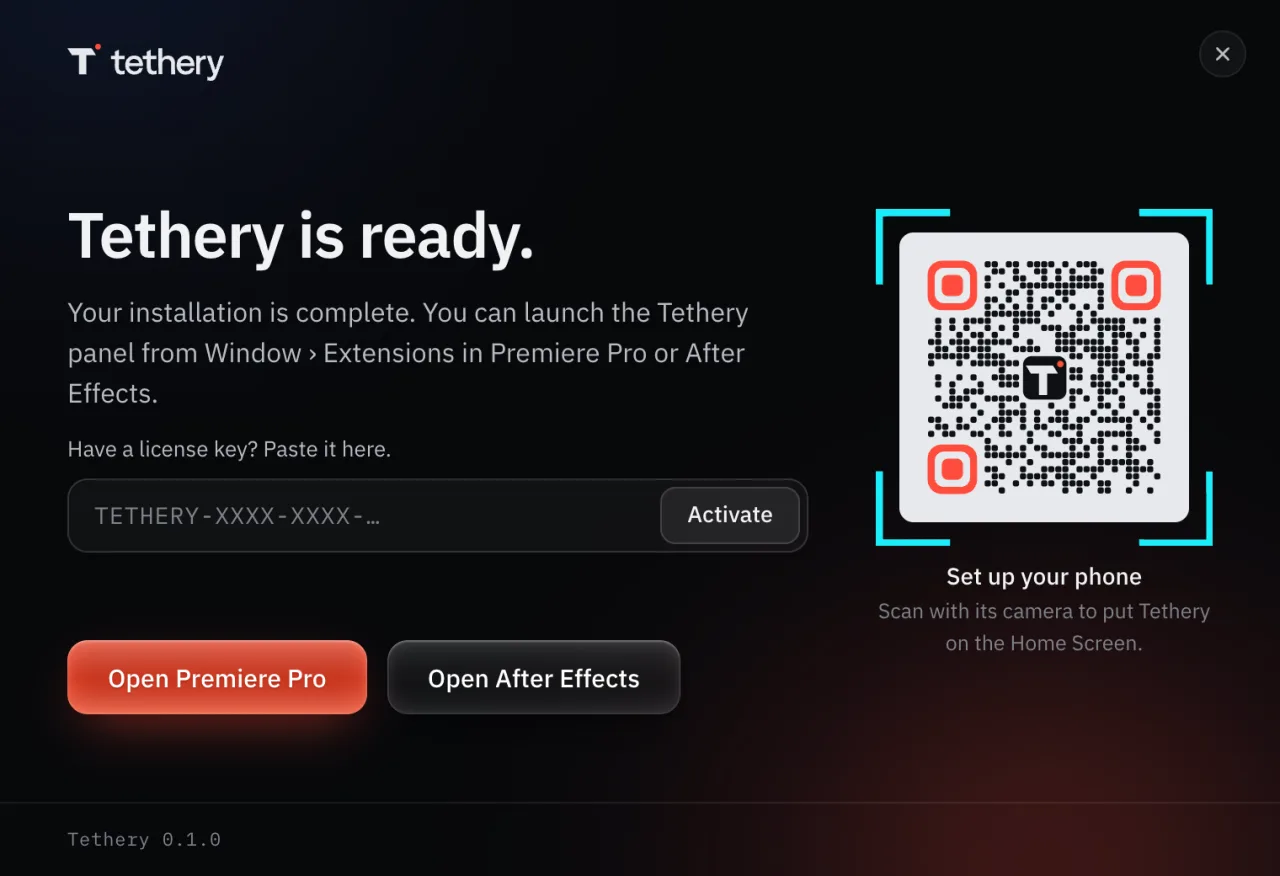
Option A: Installer
Right after installing, the installer’s last screen has a field for the key. Paste it and press Activate.
On a computer that’s already licensed, after an update or a reinstall, the last screen lists its licenses instead: one row per app, Licensed, or the free version with Add a key. There’s nothing to enter again.
Option B: Panel
Any time after, in the Tethery panel in Premiere Pro or After Effects.
- Open the License page
In the Tethery panel, press the key icon at the top.
 ?IdleConnection What are my connection options?Wi‑Fi192.168.1.75Start session
The key icon, beside the question mark. - Paste your key and activate
Paste it, then press Activate this computer.
LicenseNo license on this computer. Activate it with the key from your purchase email.
License key7KQ4-M9XC-2HPR-W6DTPasteActivate this computerA license covers two computers. Deactivate this one before moving to a third.
The License page, a key pasted in. - The key, four groups of four letters and numbers.
- Paste takes it from the clipboard.
- Activate this computer sends it to the license server once, and saves a license made for this computer.
- Confirm on the License page
The page says the license is on this computer, and how many more computers it can go on. The watermark comes off within a few seconds of the next session starting.
LicenseA license for Jordan Lee is on this computer. The plug-in checks it when a session runs. It renews itself whenever this computer is online.
Activated. The license is saved on this computer, with 1 more computer it can be activated on. The watermark comes off within a few seconds of the plug-in seeing it.
Deactivate this computerA license covers two computers. Deactivate this one before moving to a third.
Activated. Deactivate is how the license moves to another computer.
Activating is the one step that needs the internet. Tethery for Premiere Pro and Tethery for After Effects are separate licenses; the bundle gives you both, each with its own key.
Move a license to another computer
A license covers two computers in all, Mac or Windows in any mix. To use Tethery on a third, free one of the two first.
From the computer you’re leaving
The usual way, while you still have the computer. It takes the license off that computer and frees its place.
- Open the License page
In the Tethery panel, press the key icon.
- Press Deactivate this computer
This needs the internet. The computer goes back to the free version.
LicenseTethery for Premiere ProLicensed on this computerDeactivate this computerA license covers two computers. Deactivate this one before moving to a third.
The panel’s License page, behind the key icon. - Activate on the new computer
Install Tethery there, open the License page, paste your key and press Activate this computer. Or paste it in the installer’s last screen.
If the panel can’t reach us, it offers Remove the license from this computer anyway. That takes the license off this computer only. Its place is still taken until you free it from your account.
From your account
For a computer you no longer have: it was sold, it broke, or it’s somewhere else.
- Sign in
Go to tethery.app/account and enter the email you bought Tethery with. We send you a link to sign in; there’s no password.
- Press Deactivate
Beside the computer you’re leaving.
ComputersMacBook ProMac · since Oct 2
DeactivateStudio PCWindows · since Oct 19
DeactivateYour account lists the computers using each license.
If that computer is ever opened again, it goes back to the free version by itself.
The bundle
The bundle is two licenses, one for Premiere Pro and one for After Effects, each with its own key and its own two computers. Move each the same way.
Your account
Sign in at tethery.app/account with the email you bought Tethery with. We send you a link; there’s no password. Your account shows your license key, the computers using it, and your receipt.
Lost your key, or the email it came in? Sign in at tethery.app/account with the address you bought with. We email you a sign-in link, and the page shows every key you own. Bought with an address you can no longer reach? Write to support@tethery.app with anything from the purchase, such as the receipt, and we’ll find it.
Refunds
See our refund terms, then write to support@tethery.app.
Still stuck? A person reads every message: support@tethery.app